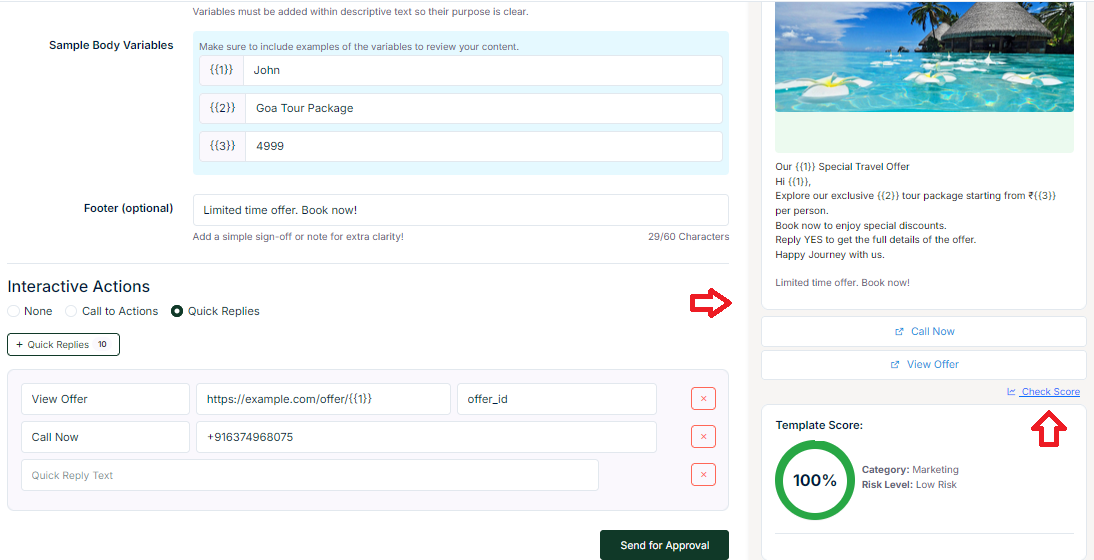
Create Marketing Template
Create template (Marketing)
- Template Category – Defines the purpose of the message template and determines how it is used and approved within the system.
- Marketing – This templates are used for promotional messages such as offers, discounts, product updates, and announcements intended to engage customers.
- Language – Select the preferred language for the message, such as English or Tamil, based on the target audience.
- Template Name – Enter a unique and meaningful name to easily identify and manage the template, and ensure that the name is always entered in lowercase format for better consistency and system compatibility.
- Template Type – Choose the message format based on your requirements, such as Text, Image, Video, Document, Carousel, or Location, to define how the message will be delivered.
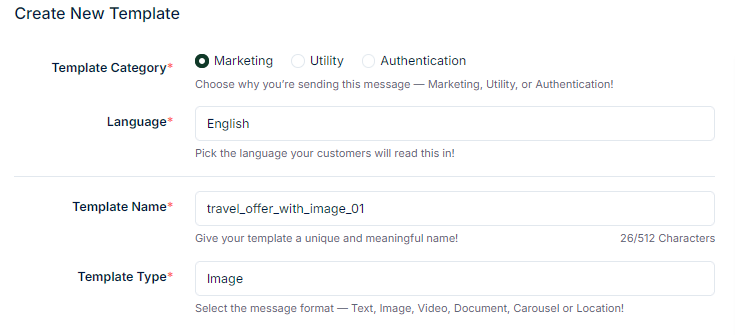
- Select the appropriate Template Type, and the message format will be aligned automatically based on the chosen type, such as Text, Image, Video, or Document.
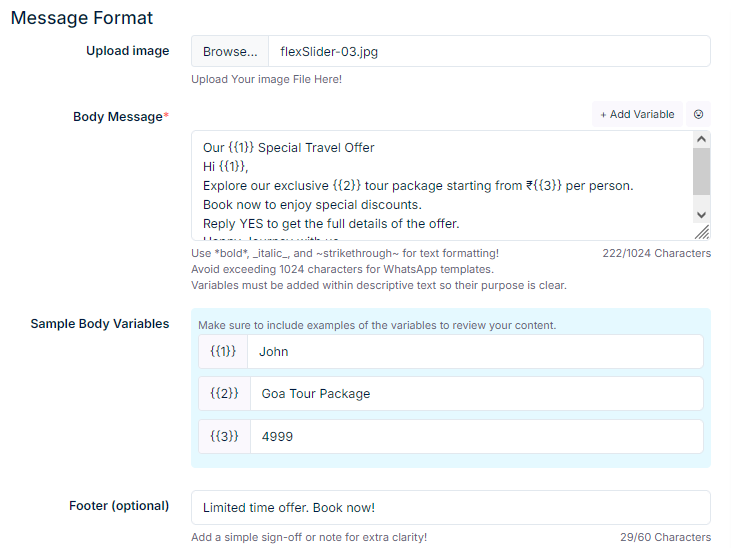
- Header / Media – For example, if Image is selected, upload a relevant promotional image (such as a travel destination or offer banner) to attract customer attention.
- Body Message – Enter the message content and use variables (e.g., {{1}}, {{2}}, {{3}}) to personalize the message dynamically for each recipient. You can also use formatting options like *bold*, _italic_, and ~strikethrough~, while ensuring the message does not exceed 1024 characters and that variables are placed within meaningful descriptive text.
Example:
Our {{1}} Special Travel Offer Hi {{1}}, Explore our exclusive {{2}} tour package starting from ₹{{3}} per person. Book now to enjoy special discounts. Reply YES to get the full details of the offer. Happy Journey with us. - Based on the variables used in the body message, corresponding Sample Body Variables (e.g., {{1}}, {{2}}, {{3}}) will appear, where you must provide sample values to preview and validate the message format.
- Footer (optional) – Add a short note or sign-off (within 60 characters), such as “Limited time offer. Book now!” to provide additional clarity or urgency to the message.
- The same procedure used for the Image template type applies to other template formats such as Text, Video, Document, Carousel, and Location, with slight variations based on the selected message format.
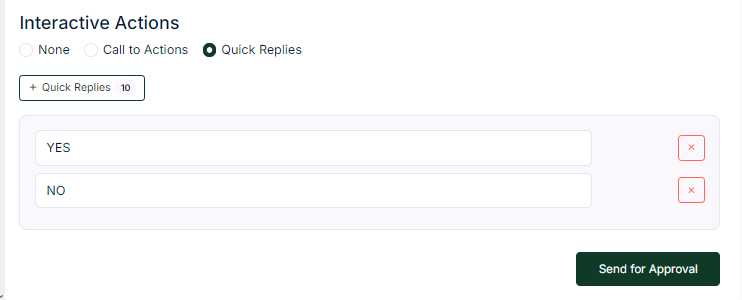
- Interactive Actions – Select the Quick Replies option to create predefined response buttons that allow users to reply instantly with a single tap.
- Quick Reply Buttons – Create button names such as YES and NO to provide predefined response options, enabling users to interact quickly and easily with the message through a single tap.
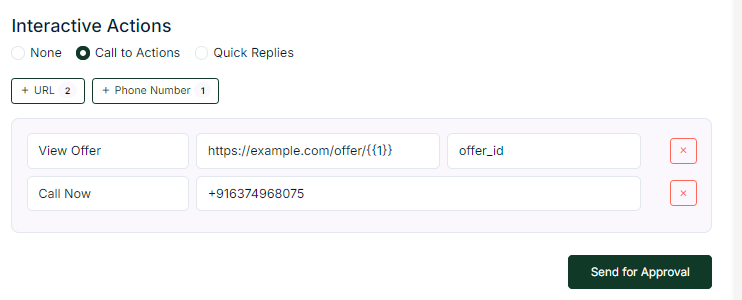
- Call to Actions – Select this option to create action-based buttons such as URL and Phone buttons, allowing users to take direct actions from the message.
- URL Button – Enter the button text and provide a URL, where you can also include a variable (e.g., {{1}}) to dynamically personalize the link for each user.
- Phone Button – Enter the button text and provide a valid phone number, enabling users to directly initiate a call from the message.
- Call to Actions – Select this option to create action-based buttons such as URL and Phone buttons, allowing users to take direct actions from the message.
- URL Button – Enter the button text and provide a URL, where you can also include a variable (e.g., {{1}}) to dynamically personalize the link for each user.
- Phone Button – Enter the button text and provide a valid phone number, enabling users to directly initiate a call from the message.
- The created template details are displayed as a live preview on the right side of the screen, allowing you to review the message format and content before finalizing.
- Click the Check Score option to evaluate the quality and compliance score of the created template before submission or usage, as templates with lower scores have a higher chance of being rejected during the approval process.
- Finally, click the Send for Approval button to submit the template for review and approval on the Meta platform.